
HP Wireless Mouse X3000
Buy HP Wireless Mouse X3000 from Brighttech Kenya
| Sku | H2C22AA |
|---|---|
| Category | |
| Family brand | Essential |
| Connectivity and Communications | |
| Wireless technologies | 27MHz wireless technology |
| Connector description | USB wireless receiver at 27 MHz |
| Multimedia and Input Devices | |
| Buttons | 3 buttons; Scroll wheel |
| Compatibility | |
| Hardware compatibility | Microsoft® Windows® XP/Vista™/7/8 |
| Warranty | |
| Warranty | 1 Year (Return to HP/Dealer – Standard Bench Repair + Phone-in Assistance), Global coverage |
| Product Names | |
| Product type | Mouse |
| Dimensions | |
| Dimensions without stand (W x D x H) | 94.85 x 57 x 39.11 mm |
| Package dimensions (W x D x H) | 110 x 70 x 52 mm |
| Package dimensions (W x D x H) | 4.33 x 2.76 x 2.05 in |
| Weights | |
| Weight | 0.080 kg |
| Package weight | 0.123 kg |
| Package weight | 0.25 lb |
Setting up the mouse
Complete the following steps to set up your wireless mouse.
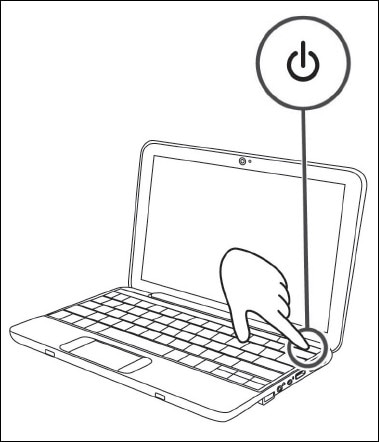
- Make sure your computer is turned on.Figure : Turning on the computer

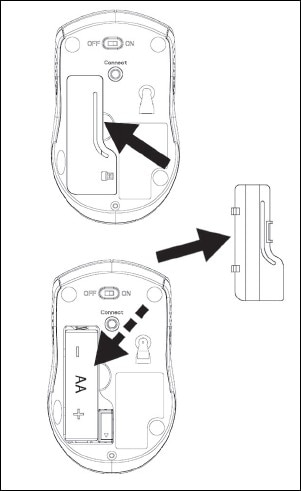
- Remove the battery compartment cover on the bottom of the mouse, insert the battery, and then replace the cover.Figure : Inserting the battery
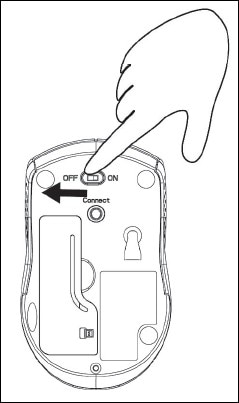
- Turn on the mouse.Figure : Turning on the mouse
- Connect the USB receiver to the USB connection on your computer. Now, you can use the mouse.Figure : Connecting the USB receiver to the USB connectionThe USB receiver and Connect lights illuminate to indicate the mouse is ready for use.Figure : USB receiver and Connect lights iluminated
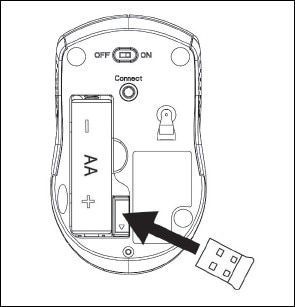
- To store the USB receiver, remove the battery compartment cover on the bottom of the mouse and then insert the USB receiver inside the battery compartment.Figure : Inserting the USB receiver inside the battery compartment


How do I connect my HP wireless mouse x3000?
How do I make my HP wireless mouse discoverable?
Why is my HP wireless mouse not working?